You have just completed the installation and configuration of your new WordPress blog—by the book. You proudly log into the dashboard and select a customized permalink (I use /%postname%/) and then hit the “Save Changes” button to save your configuration. Your blog now—goes crazy. When you try to access your blog, your browser returns nasty error pages instead of your blog’s content.
You recheck everything again, but can’t find any problem with your installation procedure. Using your FTP program or the WebShell utility at your host’s control panel, you verify that all of the necessary WordPress files and folders are in place and that the permissions are set correctly. In desperation, and using the control panel’s phpMyAdmin interface, you also verify that the MySQL database has been installed correctly and that the installer has configured the database tables. What could be wrong?
Before deleting your WordPress files and folders and zeroing out the database prior to trying a new installation, you grab a cup of your favorite beverage and relax a minute. You think about your installation. You remember that your new blog worked perfectly before you elected to change the permalink structure. Maybe it’s time to look at the server’s error log for the blog’s domain to see if it points to the root problem.
In the server’s error log, accessed from the host’s control panel, you notice the following error entry:
[Sun Mar 29 13:30:38 2009] [error] [client …] Options FollowSymLinks or SymLinksIfOwnerMatch is off which implies that RewriteRule directive is forbidden ….
Bingo! Now you remember seeing something when you used the control panel to set up your blog’s domain. You log into your control panel and select the “Web options” icon. Right at the top of the options page you see that the “Symbolic Links” option is disabled. You enable and apply this option—and now the health of your blog is restored.
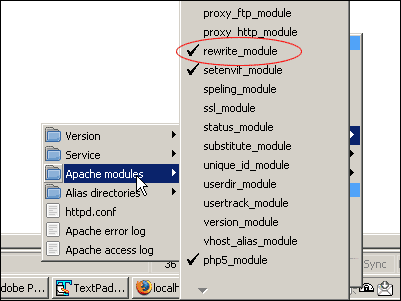
The same problem can exist if you are running WordPress locally in WampServer. In Wampserver, you need to activate one additional Apache module. From the WampServer quick-start menu, select
Apache/Apache modules/ and check the rewrite_module. You may have to “Start All Services” for this to take effect. When the module has been activated, a check mark will be in front of the option. The rewrite_module is needed for “pretty URLs,” or permalinks. For my WordPress sites, I use a custom permalink of /%postname%/.