Post updated on March 14, 2011
One of the best features of the latest WordPress version is the menu bar. The menu bar has been styled so as not to be distracting but to be there at all times for easy user navigation.
The menu bar is optioned from Dashboard/Appearance/Menus (Figure 1).
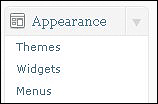
Figure 2 shows the menu-options page (options #1-5). I first created a menu called “Articles” (option #1, a category name). I then selected this menu as the “Primary Navigation” menu (option #1a). If there are multiple menus defined, a primary menu can be selected by viewing all menus in the Primary Navigation drop-down box and selecting the desired menu.
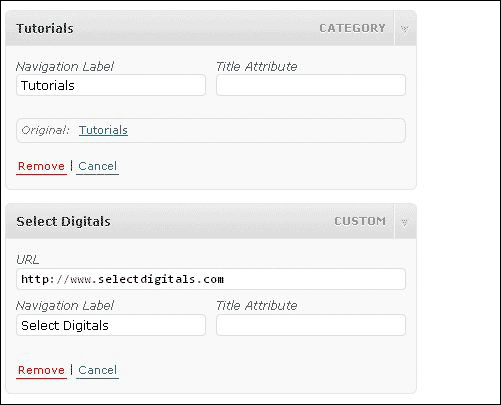
For a custom menu item linking to my web site, selectdigitals.com, I filled in the URL in #2 and clicked the “Add to Menu” button. This added a custom menu choice to the menu list (#5). Menu choices can be added to the list by selecting items from the “Pages” and “Categories” list (#3, #4) and clicking the “Add to Menu” button. “Navigation Labels,” the labels that will appear in the menu bar, can be modified by clicking the down arrow at the end of each menu item (Figure 3). I gave the custom menu choice for my web site a “Navigation Label” of “Select Digitals.”
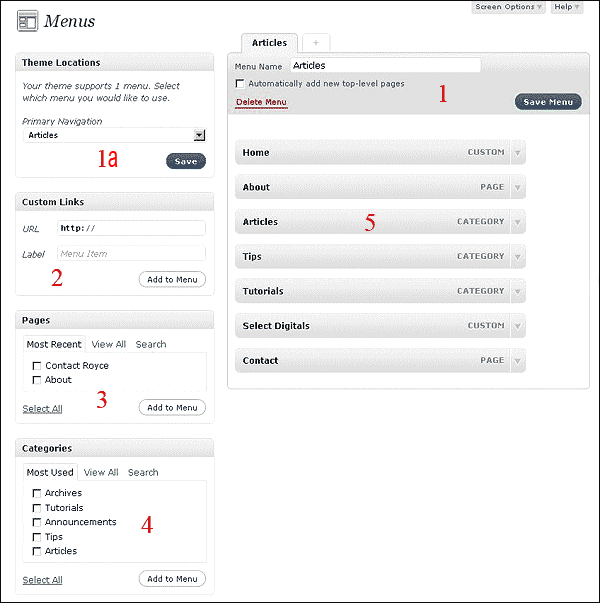
After the menu items have been selected, it is easy to organize them by dragging each menu item to the position you want them to appear at in the menu bar: the top-most menu item of #5 will be the left-most navigational link of the menu bar. Figure 4 shows the final SelectDigitals menu bar with “Articles” selected.
By dragging a menu item to the right, it will “stick” indented under the menu item above and will become a child menu item; so, it’s very easy to create drop-down menus. Of course, all menus might need to be styled in CSS to display as you wish. WordPress 3.X even makes the styling easier.
Clicking the “Screen Options” tab above the “Menus” area reveals advanced properties that you can elect to show in the customization fields for each menu item in #5, including fields related to links and styling.
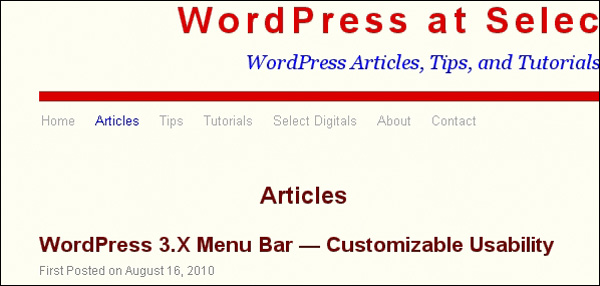
When a visitor lands on a category page, by clicking on “Articles” in the menu bar, for example, the page is identified with a nice big category name centered at the top of the category list. Unless you look carefully at the source code for your WordPress site, you might miss something important abut these page and entry titles. The big site title in the header is bracketed with H1 tags only on the home page. The page and entry titles, such as “Articles” and “About” inherit the H1 tags on the pages on which they display, thus receiving the SEO focus, as they should, while the H1 tags are removed from the site-title in the header. You can verify this yourself by inspecting the source code for the pages on this blog.
I try to make the usefulness of my articles, tips, and tutorials as long lived as possible. I list recent content I feel of most value to visitors in the sidebar and avoid associating the term “archive” with this content. When content gets dated or is of relatively little usefulness, I give it the category of “archive” and do not show it in the sidebar. Content with an archive category can still be accessed with the “site-index” or “site-search” widgets.